Install your eSIM before departure, then turn it on when you reach your destination.
 Download Linklan App
Install your eSIM before departure, then turn it on when you reach your destination.
Download Linklan AppUse the QR code option when the code is available on another screen.

Choose manual setup when scanning the QR code is not possible.

Install and activate your eSIM on iPhone
Choose How You’d Like to Install Your eSIM
Open the Linklan App and select the eSIM plan you want to install.
Tap Install to Phone and follow the instructions shown on your iPhone.
Tap Activate when prompted on your iPhone and continue with the instructions shown on your screen.
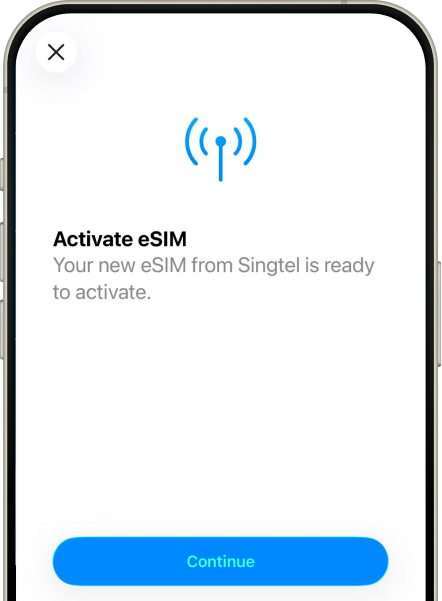
The installation process will start automatically when you scan the QR code on your iPhone. Tap Continue.
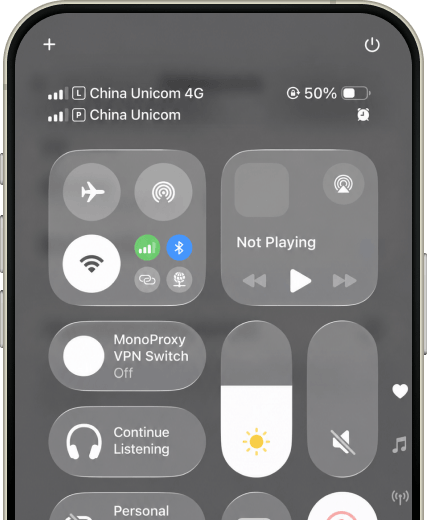
Questions during setup? Our support team is available 24/7 to help you through online chat.
Chat with Us